Virtual Reality (VR) porn is no longer limited to expensive headsets and powerful gaming PCs. Today, your Android phone can deliver an immersive experience right from your pocket. The biggest advantage? Convenience and portability. With just your smartphone, you can dive into high-quality VR porn anytime and anywhere, without complicated setups or extra gear.
This guide is designed to be the easiest way to get started with Android VR porn. By using a dedicated, user-friendly app like PLAY’A VR, you can stream or download content in just a few taps. Whether you’re lounging at home, traveling, or sneaking in a quick session on the go, your Android device makes VR porn more accessible than ever.
Here, we’ll walk you through the requirements, setup steps, and best practices so you can enjoy a smooth, private, and highly immersive experience.
Quick-Start Checklist
Before diving into VR content on your Android, make sure you’ve got the basics covered. These simple requirements will guarantee smooth playback and the best immersive experience:
- An Android phone running Android 6.0 or later for compatibility.
- A high-resolution display (1080p or higher) to keep visuals sharp and lifelike.
- The PLAY’A VR app downloaded from the Google Play Store for easy access to VR videos.
- A stable Wi-Fi connection to ensure uninterrupted streaming and fast downloads.
Set-Up Guide: Using the PLAY’A VR App
The PLAY’A VR app is one of the easiest and most reliable ways to enjoy VR content on your Android device. It supports both streaming from your browser and playing downloaded local files, giving you flexibility no matter how you prefer to watch.
With just a few steps, you’ll be ready to dive into immersive video experiences at full resolution.
1. Installing & Configuring the App
Getting started begins with installing the PLAY’A VR app from the Google Play Store. Once downloaded, open the app and grant it the necessary permissions for storage and network access. These permissions are crucial for the app to stream videos online and to read any local files you may want to play later.
After installation, it’s a good idea to configure a few settings before diving into content. For example, check your video resolution defaults: setting them to at least 1080p will make a huge difference in visual clarity.
You can also adjust playback preferences like auto-resume or looping if you plan to watch longer content. Make sure your phone’s display settings are optimized too: increase brightness, disable adaptive dimming, and keep battery saver off to avoid interruptions. With these steps completed, your app is properly configured and ready for both streaming and local playback.
2. Streaming Content from the Browser
Streaming content directly from your phone’s browser into the PLAY’A VR app is one of the fastest ways to get started. Once you’ve found a VR video you’d like to watch, simply select the playback option and choose PLAY’A VR as your preferred app when prompted. The video will automatically launch in VR mode, allowing you to adjust perspective, zoom, and quality settings right within the player.
For the smoothest experience, make sure you’re connected to a stable Wi-Fi network. Buffering can break immersion quickly. Most users find it helpful to preload the video for a few seconds before fully engaging in VR mode. The PLAY’A VR app also supports bookmarks, letting you save your favorite streaming sources for quicker access later.
If you stream frequently, consider creating a folder of trusted sites in your browser so you don’t waste time searching. This approach makes streaming seamless, reducing setup time and giving you instant access to the latest VR content.
3. Playing Downloaded Local Files
If you prefer offline playback, PLAY’A VR makes handling downloaded local files simple and efficient. Start by saving your chosen VR videos directly onto your phone’s storage, ideally in a dedicated folder so they’re easy to find later.
When you open the app, navigate to the Local Files section where PLAY’A automatically detects compatible formats. Select your video, and it will launch instantly in VR mode. This option is especially useful if you’re traveling, have limited connectivity, or just want smoother playback without relying on internet speeds.
To maximize quality, always download the highest resolution version available, since offline files aren’t subject to buffering. You can also organize your library by renaming files or grouping them into folders for different genres. PLAY’A supports most standard VR video formats, so compatibility shouldn’t be an issue.
By keeping a small library of preloaded videos, you’ll always have reliable, high-quality VR content at your fingertips, even without Wi-Fi.
Video Quality & Recommendations
When it comes to VR porn, the quality of your videos directly affects immersion. To get the smoothest playback and the most realistic experience, aim for files encoded in H.265 (HEVC), which compresses high-resolution content without losing detail.
For resolution, 4K is a comfortable baseline, while 6K or 8K content delivers the crispest visuals and truly brings the scene to life, provided your phone can handle the performance load. A stable connection is also crucial if you’re streaming instead of downloading.
For those looking to explore premium content, POVR.com offers an excellent selection of high-quality VR porn videos. Here are some recommended titles to showcase what your setup can do:
- Latena – Directors Cut – Ebony Twerk & Squirt (Ebony VR Solos, 5K): A high-energy 10-minute performance highlighting Latena’s twerking and squirting, filmed in 5K resolution for an intimate, vibrant look.
- Acting It Out (VRAllure, 8K): A seductive roleplay scenario that runs 22 minutes. Shot in 8K clarity, it blends sharp visuals with a captivating storyline.
- Fanta Sie: The Cowgirl (POVcentralVR, 8K): A 30-minute cowgirl session shot in 8K, offering close-up detail and superior immersion.
- Getting Into Amaya’s Good Graces (CovertJapan, 5K): A 28-minute journey with Amaya that mixes allure with intimacy. Filmed in 5K, it brings lifelike clarity to every moment.
- Kitchen Surprise (Amateur Couples VR, 8K): A spontaneous 12-minute encounter in a kitchen setting, filmed in 8K resolution for a raw, realistic experience.
These examples demonstrate how resolution, encoding, and production style can elevate your VR porn viewing. Starting with a few well-produced titles ensures your Android + PLAY’A VR setup is showing its full potential.
Enhancing the experience
To get the most out of your Android VR porn experience, a few simple adjustments can make a big difference:
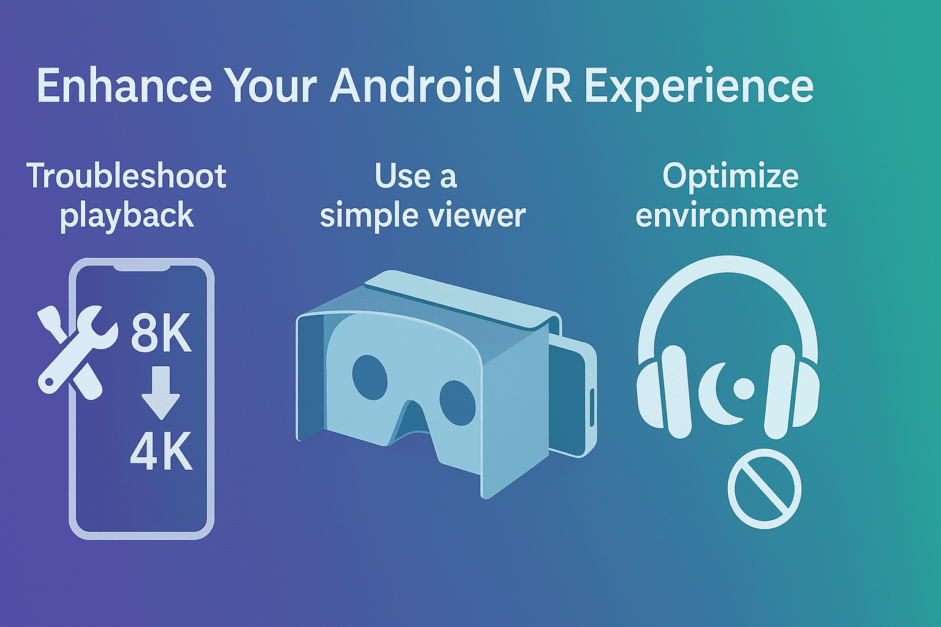
Troubleshoot playback issues
If a video isn’t running smoothly, first check that your Android OS is up to date. Compatibility issues are often resolved with the latest system update. If stuttering continues, try lowering the resolution from 8K or 5K down to 4K for smoother playback.
Improve immersion with a headset
For a more convincing 3-D effect, consider using a simple phone holder such as Google Cardboard. These affordable viewers allow you to slip your phone in and enjoy content with depth and perspective, making the experience feel much more lifelike without needing an expensive VR headset.
Optimize your viewing environment
Watching in a quiet, comfortable space with minimal distractions will help you focus fully on the visuals and audio. A pair of quality headphones can also heighten the realism and intimacy.
By fine-tuning your setup and environment, you’ll maximize both performance and immersion, creating a seamless and enjoyable VR experience on your Android device.
Privacy & discretion
Enjoying VR content on your Android should also mean peace of mind. By taking a few simple steps, you can keep your viewing private and your device secure.
Use privacy modes in the PLAY’A VR app
Most VR video players, including PLAY’A VR, offer built-in privacy features. Enable these to hide your viewing history and keep your content separate from other media on your phone.
Secure your device with a strong password
Protect your phone with a robust lock screen — whether it’s a PIN, pattern, or biometric login. This ensures that only you can access your VR apps and media.
Browse with incognito mode
If you’re streaming directly from a browser, switch on incognito or private browsing mode. This prevents your activity from being stored in history or cached on your device.
Mini-FAQ
Which Android phones can play 8K 360° videos smoothly in 2025?
Flagship devices like the Samsung Galaxy S25 Ultra, Google Pixel 9 Pro, and ASUS ROG Phone 9 handle 8K 360° playback well thanks to Snapdragon 8 Gen 4 chips and optimized cooling. Mid-range models may struggle, so choose a high-end phone with ample RAM for smooth performance.
Does Chrome now support WebXR without flags on Android 15?
Yes. As of Android 15, Chrome supports WebXR natively without developer flags. This makes accessing browser-based VR content much easier, as users can launch immersive web experiences directly. Always update Chrome to the latest version, since performance improvements and new VR compatibility patches are released frequently.
What free VR player app is safest for APK sideloading?
PLAY’A VR remains one of the most trusted free VR video players, even when sideloaded via APK. It’s regularly updated, supports multiple file formats, and has privacy controls. When sideloading, always download from the official site or verified app repositories to minimize malware and data theft risks.
How do I keep VR videos hidden from my phone’s gallery?
Place VR video files in a folder with a .nomedia file to prevent Android’s gallery apps from scanning them. Many VR players also include built-in “private folders” or lock modes. Combined with a secure device password, these steps ensure your videos stay hidden from casual browsing.
Is a cheap clip-on lens viewer worth it compared with a real headset?
Clip-on lenses are fine for quick tests, but they can’t match the comfort, optics, or immersion of a real VR headset. Affordable entry-level headsets like Google Cardboard alternatives or budget Android-compatible viewers offer a far better experience and prevent eye strain, making them the smarter long-term choice.
Reinvigorate Your Android VR Porn Experience
Exploring adult VR on Android doesn’t need to be complicated. With a reliable player like PLAY’A VR, you can unlock smooth playback, crisp visuals, and immersive 3-D experiences without technical hassle. Paired with a simple headset or viewer, any modern Android device can become your personal VR cinema.